
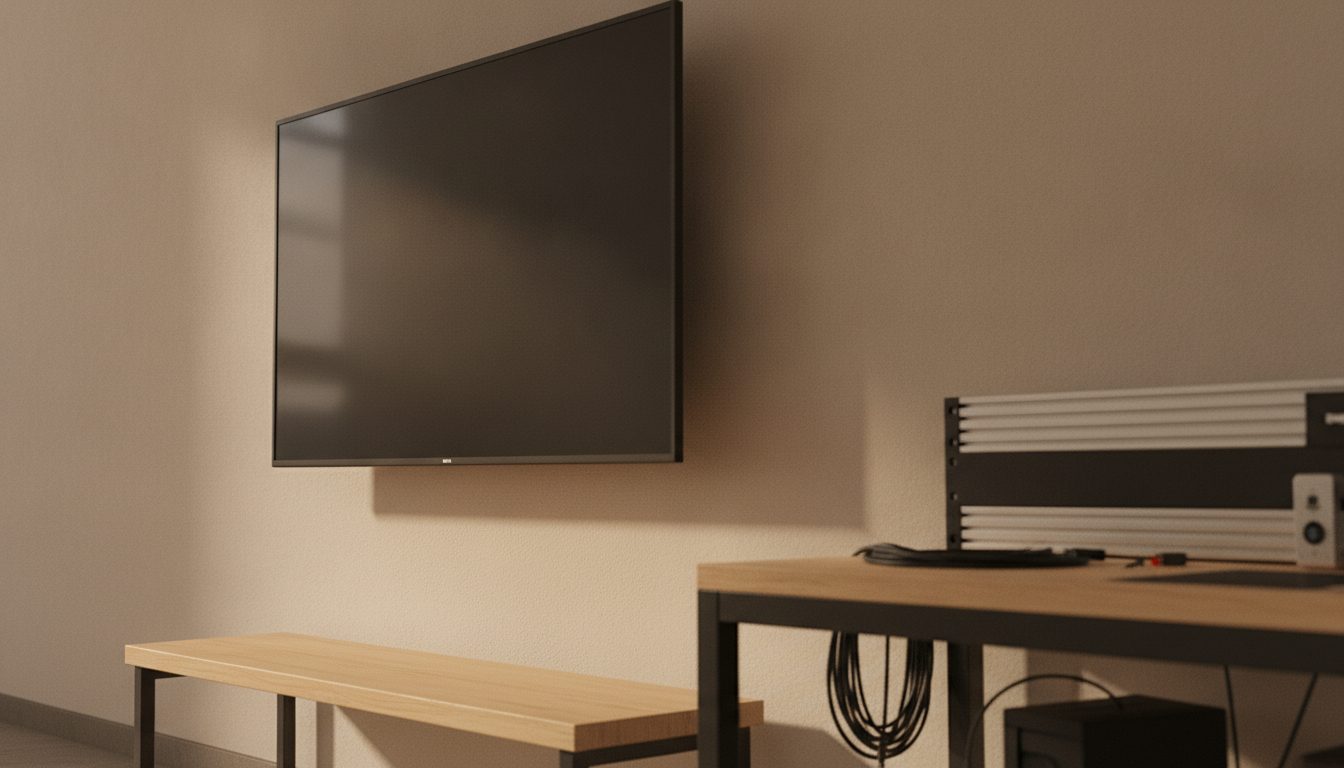
Quick Answer: To build a Raspberry Pi info screen, connect a Pi to a display and pick one of two routes. Anthias is free, open-source digital signage that schedules images, videos and web pages from a web interface. The other route is Chromium in full-screen kiosk mode on Raspberry Pi OS, which Raspberry Pi's kiosk guide says needs a Pi 3 or newer with at least 1GB of RAM. Turn screen blanking off so the display stays lit.
An info screen is a display that shows web pages, notices or dashboards from a Raspberry Pi without anyone touching it. Typical uses are a family calendar, a smart home dashboard or a noticeboard. This post compares the two main routes and shows the setup. Our Raspberry Pi dashboard post covers a different build.
What hardware does a Raspberry Pi info screen need?
You need a Pi, a screen, a power supply, a microSD card and the right display cable. Raspberry Pi's kiosk guide uses a Pi 3 or newer with at least 1GB of RAM and Raspberry Pi OS (64-bit). Anthias lists support for Raspberry Pi 2 through Pi 5 and x86 PCs. For cables and supplies by model, see our starter kit checklist and power requirements guides.
Should you use Anthias or a full-screen browser?
Use Anthias to rotate several items on a schedule, and a browser to show one dashboard or a few pages. The table summarizes both, based on each project's own documentation, read in October 2026.
| Route | Good for | How it installs |
|---|---|---|
| Anthias | A playlist of images, videos and web pages, with start and end dates, durations and a display schedule | Raspberry Pi Imager, under Other specific-purpose OS, Digital signage and kiosks, Anthias |
| Chromium in kiosk mode | One web page or a short rotation, such as a smart home dashboard | Raspberry Pi OS (64-bit), plus an autostart file edit |
Anthias was formerly called Screenly OSE. Its install page says the device boots straight into Anthias after you flash the card. It has a web interface and a REST API on the device's address, so keep it on your home network and do not forward a port to it. Our Home Assistant dashboards post covers pages worth showing, and the DAKboard and Magic Mirror guides cover ready-made displays.
How do you set up a full-screen browser display?
Follow Raspberry Pi's tutorial on using a Raspberry Pi in kiosk mode (on raspberrypi.com, read October 2026). It has you set a hostname, a username and password, Wi-Fi and SSH in Imager, update the system, then edit ~/.config/labwc/autostart. The browser line looks like this, where the address is your page:
chromium https://example.com --kiosk --noerrdialogs --disable-infobars --no-first-run --enable-features=OverlayScrollbar --start-maximized &The trailing & lets a second line run alongside it. The tutorial uses that for a small script that switches tabs on a timer with the wtype tool. Reboot afterwards. The guide notes that kiosk mode has no way to quit, so you change settings over SSH.
How do you keep the screen on and the setup secure?
Turn screen blanking off. Raspberry Pi's documentation says blanking defaults to ten minutes of inactivity when enabled. Run sudo raspi-config, open Display Options, choose Screen Blanking and answer No. Our guide to stopping a Raspberry Pi from sleeping covers the same job.
The kiosk guide lists optional hardening for a screen that runs unattended: SSH keys with password login turned off, and the overlay file system, set in raspi-config under Performance Options. Read the screen blanking documentation if you want a longer timeout instead of turning blanking off.
When is a Raspberry Pi the wrong choice?
A Pi is the wrong choice when you only need one clock or weather page. A spare tablet or the display's own apps may do that with less work. It is also a poor fit if you want a hosted service to manage many screens, because Anthias is self-hosted and the upkeep is yours.
Frequently asked questions
How do I make a Raspberry Pi information display?
Connect the Pi to a screen, install Anthias with Raspberry Pi Imager or set up Chromium in kiosk mode, then add the pages or media to show. Turn off screen blanking so the display stays lit.
What is the best software for a Raspberry Pi info screen?
It depends on the job. Anthias suits a scheduled playlist of images, videos and pages. A Chromium kiosk suits a single dashboard, and DAKboard or Magic Mirror suit calendar and mirror displays.
Can I build a Raspberry Pi home dashboard?
Yes. Run a dashboard page in a Chromium kiosk, such as a Home Assistant dashboard. Our Home Assistant dashboards post covers layouts and cards.
Which Raspberry Pi should I use for an info screen?
The kiosk guide needs a Pi 3 or newer with at least 1GB of RAM. Anthias lists support for Pi 2 through Pi 5, so check your content type against the model.
How do I stop the screen from going blank?
Open sudo raspi-config, go to Display Options, choose Screen Blanking and answer No. When blanking is enabled, the default timeout is ten minutes.
Can I change what the screen shows without a keyboard?
With Anthias, yes, because it has a web interface you open from another device. A kiosk page can be changed over SSH, as the guide describes.